How to Download and Extract Requested Data
This article explains how to download and extract data that has been provided to you, as a result of a request you submitted.
Once we have notified you that the requested data has been sent to the chosen secure email address, you can use the following steps to access that data.
Once we have notified you that the requested data has been sent to the chosen secure email address, you can use the following steps to access that data.
1. Open the email account associated with the chosen secure email address, and locate the email from 'Careview Support' (support@careviewapp.com).
2. Open the email, then click the Open button.

If you would like to confirm the legitimacy of the email, please call us on 07 5406 1013 to confirm Careview has
sent the secure email.
3. A Request Verification Code page will appear. Click Send Code.
4. Open the email account associated with the chosen secure email address, and take note of the 8-digit code that appears in the subject of the email sent from Microsoft Notifications (no-reply@notify.microsoft.com).
5. Go back to the Request Verification Code page opened in step 3, and enter the 8-digit code.
6. A Microsoft OneDrive folder will appear, containing the requested data. Click the actions button (three horizontal dots), and click Download.
7. Locate the ZIP file downloaded to your chosen location, and extract the contents.

The process of extracting the contents of the ZIP file will vary depending on the device and operating system being used.
8. During extraction, you will be asked for a password.
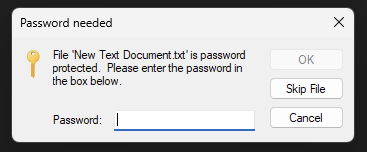
9. Locate and open the SMS sent to the chosen secure mobile number. Open the provided link.
10. A webpage will appear asking for an email address. Enter the chosen secure email (as used in step 1), and click Send Code.
11. Open the email account associated with the chosen secure email address (as in step 1 and 4), and take note of the 6-digit code that appears in the subject of the email sent from 1Password (hello@1password.com).
12. On the device used to open the password link (in step 10), enter the 6-digit code, then click View Item.
13. The following page will appear. Click or press the green circle.
14. Click or press the downward facing chevron that appears in its place, then Reveal.
15. Take note of the password that appears.
16. Go back to the password prompt (from step 8), and enter the password.
17. The data extract will complete and you can now access the provided data.